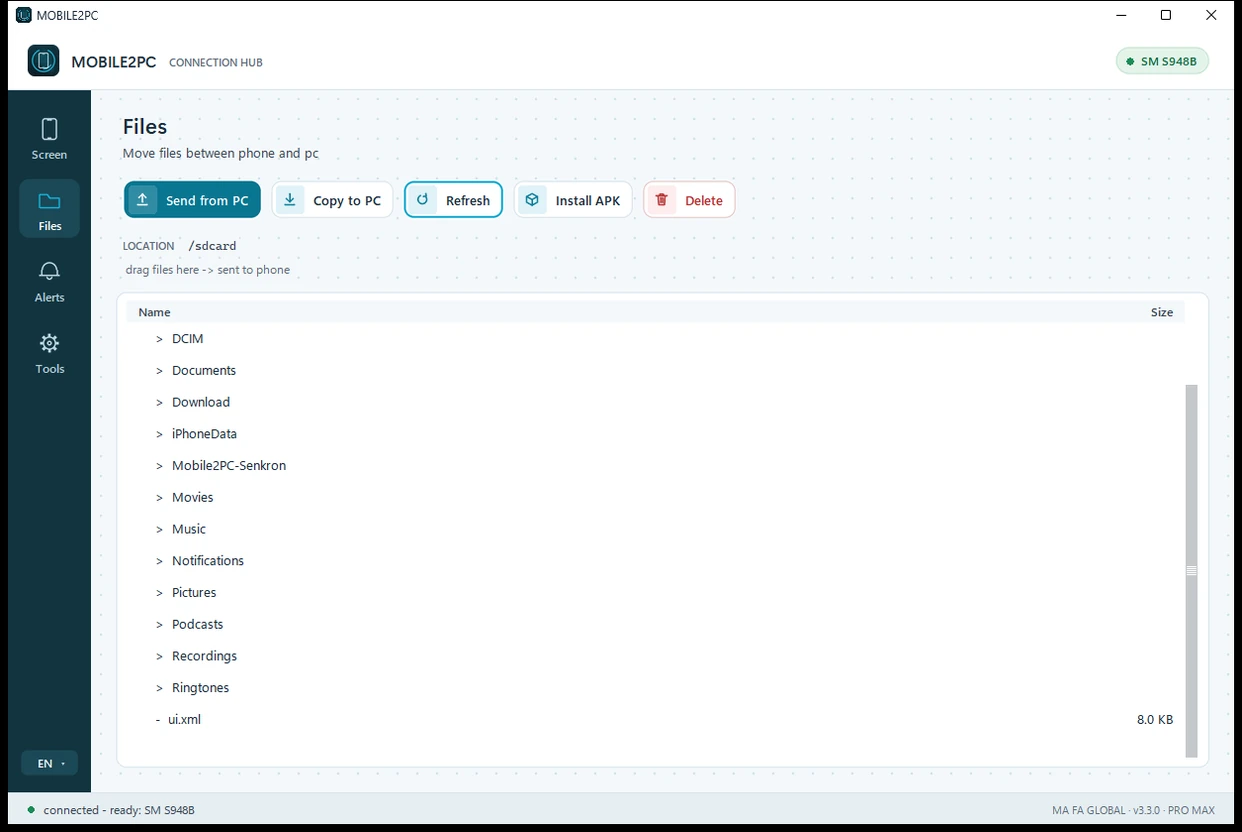
Drag and drop
· files from phone to computer, from computer to phone
Windows · v3.4.0 · Mac in development
No emulator. The game runs on your own phone and shows up on your PC — your phone stays free.
No installation on Windows · Plug in, connect · One-time licence
Hero feature · Pro · try it free 10 min a day
The game opens inside your phone on a separate virtual screen and runs in the window on your computer. Your phone's own screen stays yours.
Turn the switch on and press CONNECT.
Pick the game or app from the list; it opens full size on a separate virtual screen inside the phone and shows in the window on your computer.
The phone's own screen stays empty.
While the game runs you can use WhatsApp, make a call, take an incoming call; the game keeps going.
Even if you close the window, the game isn't lost:
it moves to the phone's main screen and you carry on where you left off.
Requires Android 11 or newer. During a phone call the game sound may not reach the computer (Android locks audio during calls); the picture keeps running. If you close the window by mistake, F5 reopens the same app. Banking apps appear black for security reasons.
Real recording: the game on the phone is played on the computer. Captured with the program's own RECORD VIDEO feature (Pro); no sound. Other players' names and pictures have been hidden.
No need for separate programs. Screen, files, messages, notifications and more all come together in one window.
· files from phone to computer, from computer to phone
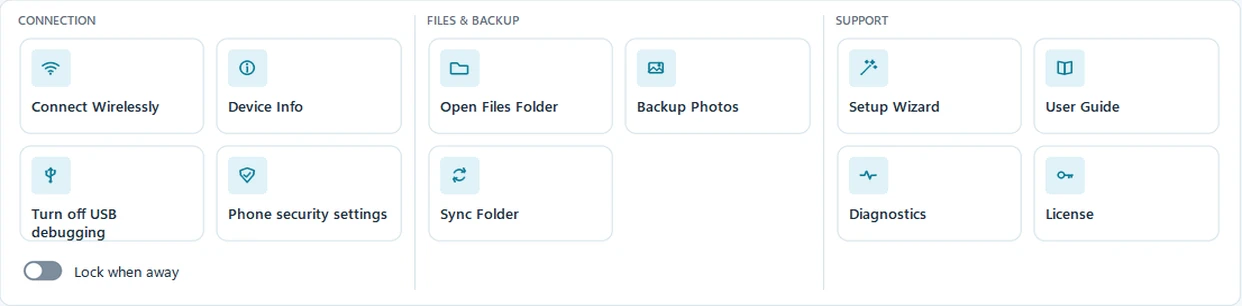
Pull photos and videos to the computer incrementally: only the new ones come over. Sync the sync folder in both directions. No cloud.
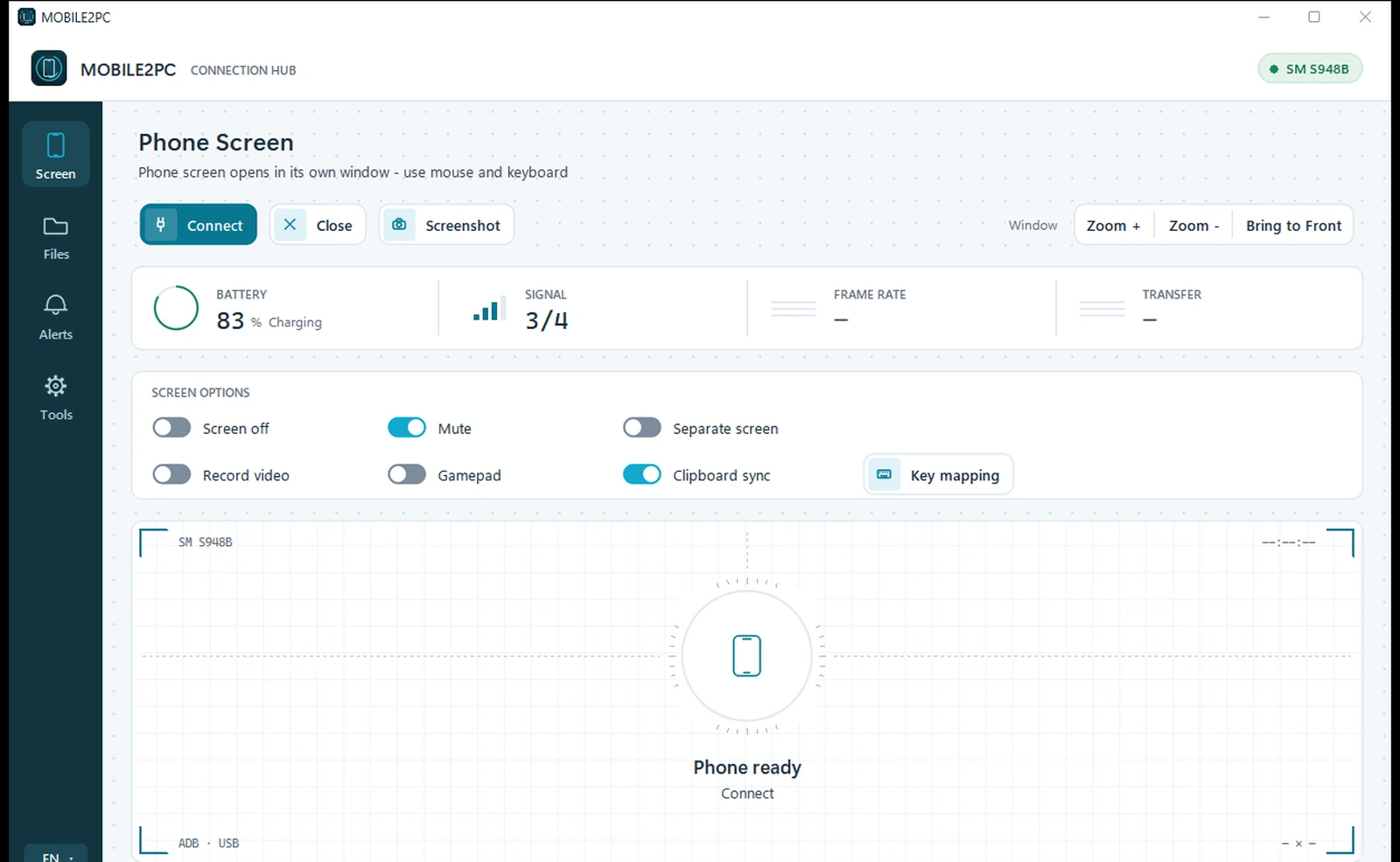
The phone screen opens in its own window on your computer. Tap and swipe with the mouse, type with the keyboard. Open apps, play games.
Send and fetch files from computer to phone and back. Just drag the file into the window.
View incoming notifications and SMS as cards on your computer screen. No need to pick up the phone.
Passes the gamepad connected to your PC through to the phone; play gamepad-ready games with a real controller.
First connection is by cable. After that you can unplug and continue over the same wifi; on Android 11 and later the phone's 'Wireless debugging' setting must be on - the program opens that screen for you.
What you copy on one device is ready on the other. CATCH OTP shows an incoming verification code on the computer screen (for security it is not copied to the clipboard).
Type the number and text on the computer; the message opens ready-filled in the phone's own app, and you tap SEND on the phone. A call starts straight from the phone.
With the SCREEN OFF switch the phone's screen stays dark while you work from the computer: no distraction on your desk, less battery drain. The MUTE switch keeps the phone's sound off your computer.
Turns your keyboard and mouse into touches on the phone screen: walk with WASD, look and aim with the mouse. You place the keys on the game's own screen yourself; the profile is saved for that game. Some games have a ready-made starting profile.
Account risk: Key mapping only imitates touches on the screen; it does not change the game. Still, some games (e.g. Call of Duty Mobile, PUBG Mobile) may treat keyboard/mouse play on a phone as against their rules or mistake it for cheating; your account may be restricted or banned, temporarily or permanently. Check the game's rules; we advise not to use it in ranked or online matches. You use it at your own risk.
· wireless connection, device info, photo backup and folder sync
Goodbye, emulator
The classic way to play a mobile game on a computer was the emulator. Mobile2PC takes another route: the game runs on your own phone and its picture comes to the computer.
✓ Mobile2PC (Separate Screen)
✕ The emulator route
The Normal edition needs no key. Pro and Pro Max unlock with a purchased licence key: one-time. The Pro/Pro Max key needs the internet for activation; the licence then renews itself online about every 30 days. Daily use works offline. If a renewal cannot be made, you get another 30 days of grace — about 60 days in total from the last successful check.
In the free edition Pro features are not hidden: they appear grey with a lock. Clicking one opens a small window showing the edition and the price; "BUY NOW" opens the payment page in your browser, "I HAVE A LICENSE KEY" takes you straight to key entry.
Normal
To get started. No key needed.
Pro
Unlimited Separate ScreenFor gamers and heavy phone users.
Required: Windows 10/11 64-bit · Android 11+ for SEPARATE SCREEN and sound · 1 key = 2 computers
BuyPro Max
Got Pro? Don't buy this: upgrade for €10
For those who want backup (photos and contacts) and automation.
Required: Windows 10/11 64-bit · Android 11+ for SEPARATE SCREEN and sound · 1 key = 2 computers
BuyAlready have Pro? Upgrade to Pro Max: €10.00 (the difference), with your Pro key.
Try the free version first: check that it connects to your own phone. If, after purchase, the program does not work as described on a system that meets the requirements (Terms, art. 4), we fix it free of charge first; if we cannot fix it, you get your money back (Terms, art. 7 and 12).
Once payment is confirmed, your licence key is sent to the e-mail address you enter at checkout. This happens automatically, usually within a few minutes; if there is a technical problem, within one business day at the latest. Prices include VAT; there is no subscription.
Licence: the key is entered once; activation needs the internet, and the licence then renews itself online about every 30 days; no account needed. You enter it under: TOOLS > LICENSE
Secure payment


So that your key can be sent immediately, on the payment page you request immediate delivery and acknowledge that you thereby lose your 14-day right of withdrawal. Details: Terms of sale
| Normal | Pro | Pro Max | |
|---|---|---|---|
| See and use the screen (mouse + keyboard) | ✓ | ✓ | ✓ |
| File transfer, drag and drop | ✓ | ✓ | ✓ |
| Read notifications and incoming SMS | ✓ | ✓ | ✓ |
| Screenshot (PNG) | ✓ | ✓ | ✓ |
| Screen off / mute | ✓ | ✓ | ✓ |
| SEPARATE SCREEN, unlimited: the app you choose on the computer, the phone free | — | ✓ | ✓ |
| Video recording (save the screen as mp4) | — | ✓ | ✓ |
| Joystick / gamepad support | — | ✓ | ✓ |
| Clipboard sync + catch OTP | — | ✓ | ✓ |
| Install APK | — | ✓ | ✓ |
| Wireless connection (wifi) | — | ✓ | ✓ |
| Multiple devices | — | ✓ | ✓ |
| Photo/video backup (incremental, new ones only) | — | — | ✓ |
| Contacts backup (.vcf): names and numbers on your own disk, restore to any phone | — | — | ✓ |
| Sync folder (two-way sync) | — | — | ✓ |
| Lock when away: the computer locks when the connection drops | — | — | ✓ |
Ready in 3 steps
No installation on Windows. On first launch the program greets you with an illustrated 5-step wizard and prepares your phone step by step.
On Windows, extract the folder and double-click Mobile2PC.exe; no installation.
Follow the wizard: tap "Build number" 7 times, then turn on USB debugging. Done once, done for good.
On the phone "Always allow" + ALLOW. The light turns green and the screen is on your computer. On Pro it goes wireless after that.
Security note: only give the "Always allow" permission to your own trusted computer. You can withdraw that permission from the phone at any time: Developer options, Revoke USB debugging authorisations. When you are not using the program you can turn USB debugging off again and switch Auto Blocker back on on Samsung phones; just turn them on again when you want to connect.
Mobile2PC v3.4.0 · Windows · 26 languages
No installation on Windows · Plug in, connect · One-time licence
Privacy and security
No cloud, no account, no access to your phone's content. It stays between your phone and your computer.
Apart from a daily update check (can be switched off), the free edition never connects to the internet. Pro/Pro Max only send the key and a pseudonymised summary of the computer to mobile2pc.com at activation and about every 30 days. The wireless link stays on your own local network.
The key is entered and activated over the internet (up to 2 computers). Day-to-day use is offline; the licence renews itself about every 30 days. If a renewal cannot be made, you get another 30 days of grace — about 60 days in total from the last successful check.
The Windows program is signed with our own signature and checks itself: if even a single byte inside it is changed, or if someone else re-signs it, it will not start. That signature does not come from a purchased certificate but from a certificate we generated ourselves; because Windows does not know us, it still shows a warning the first time you open it.
What people ask
Can't find your answer? Write to: info@mobile2pc.com
Support in Dutch, English and Turkish, usually within 2 business days.
Ready?
If you have a problem or a question, one e-mail is enough; we also help you choose the right edition.
Free Download (Windows)